

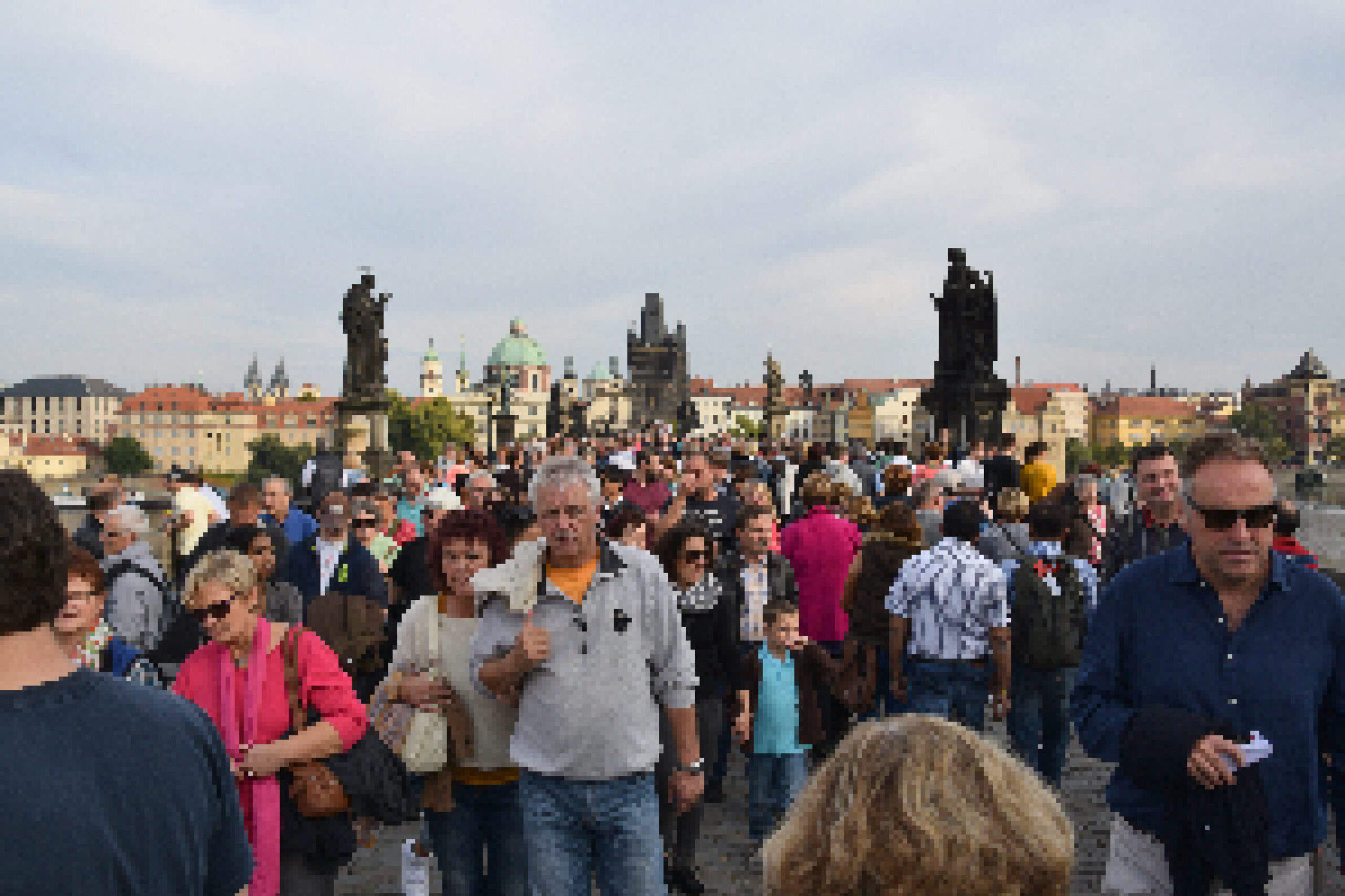
I was given a Kodak 11.6-inch FHD Digital Photo Frame as a present. It’s great, although as a professional user-oriented software developer I think their software sucks! Take for example this original photo in 3:2 format, 2560×1706 resolution (originally 5662×3774, downsized for bandwidth conservation and pixelated for privacy) (click image to view enlarged versions):
One of the Kodak annoyances IMHO is that the only display options are:
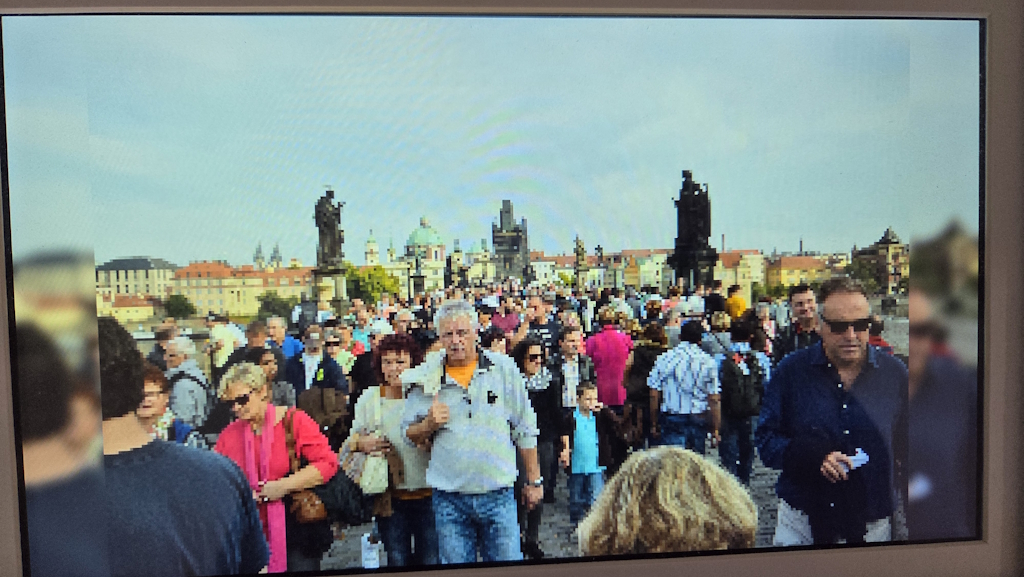
Normal, which zooms in or out to fit the entire photo, filling the sides outside the photo’s resolution with a weird blurred copy of a portion of the adjoining edge. This can work for some photos but just looks stupid where there’s detail at the edges:
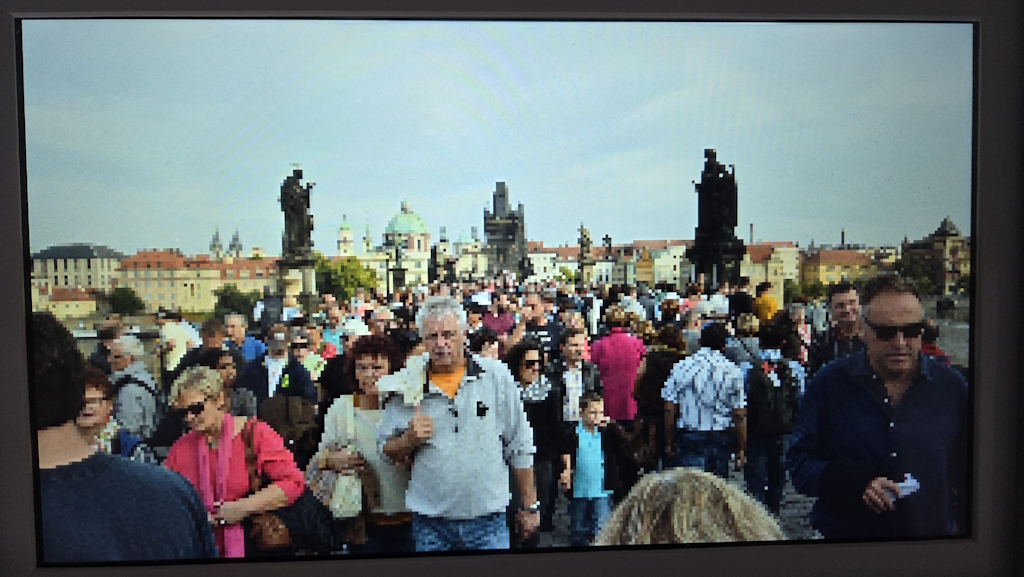
Full Screen, which fits the shortest side and crops the other sides to fit. This can remove wanted detail eg half a head:
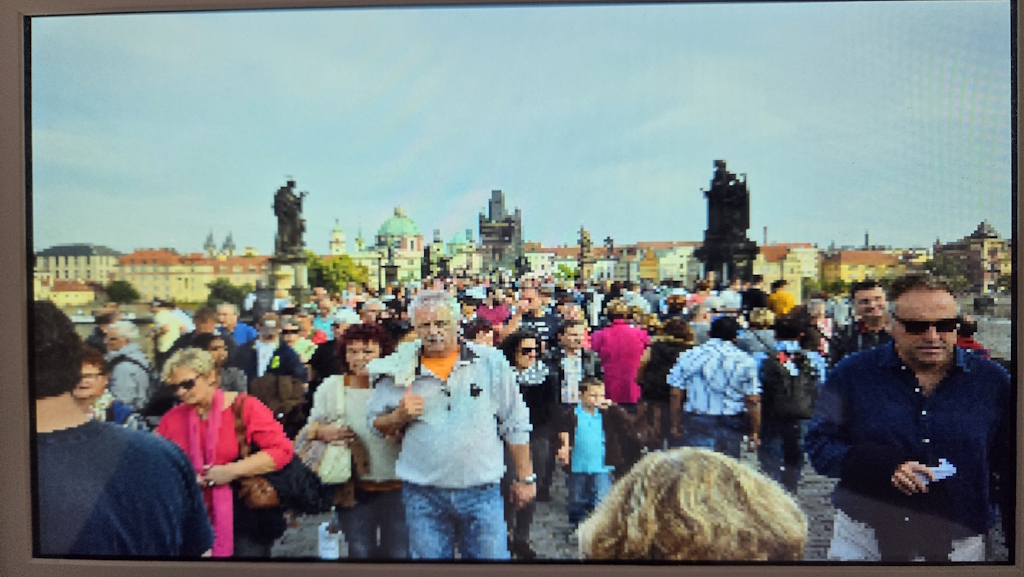
And finally Stretch, which fits the shortest side and stretches the longest sides to fit. This distorts the image, for example makes people look fatter. Not a good option for spouse photos!
I have thousands of photos going back many years, almost none of which are in the same 16:9 format, 1920×1080 resolution of the display, some in portrait orientation and some in landscape. I find none of those options a good solution, in fact they’re all pretty awful. I wanted to retain the original ratio but resize the photos to fit inside the frame, with a (nominally) black border, so similar to the “Normal” option but without the blurred fill-ins on the edges. I knew I could do that using pretty-well any image editor (I use paint.net) by resizing each photo and then changing the canvas size, but that’s not practical when you’re looking to do many hundreds of photos. You can also do it using online tools, but again one photo at a time isn’t a practical solution. I needed a program I could run on my laptop that would resize a whole bunch of photos at once and make them all the desired ratio & resolution, with black borders where necessary.
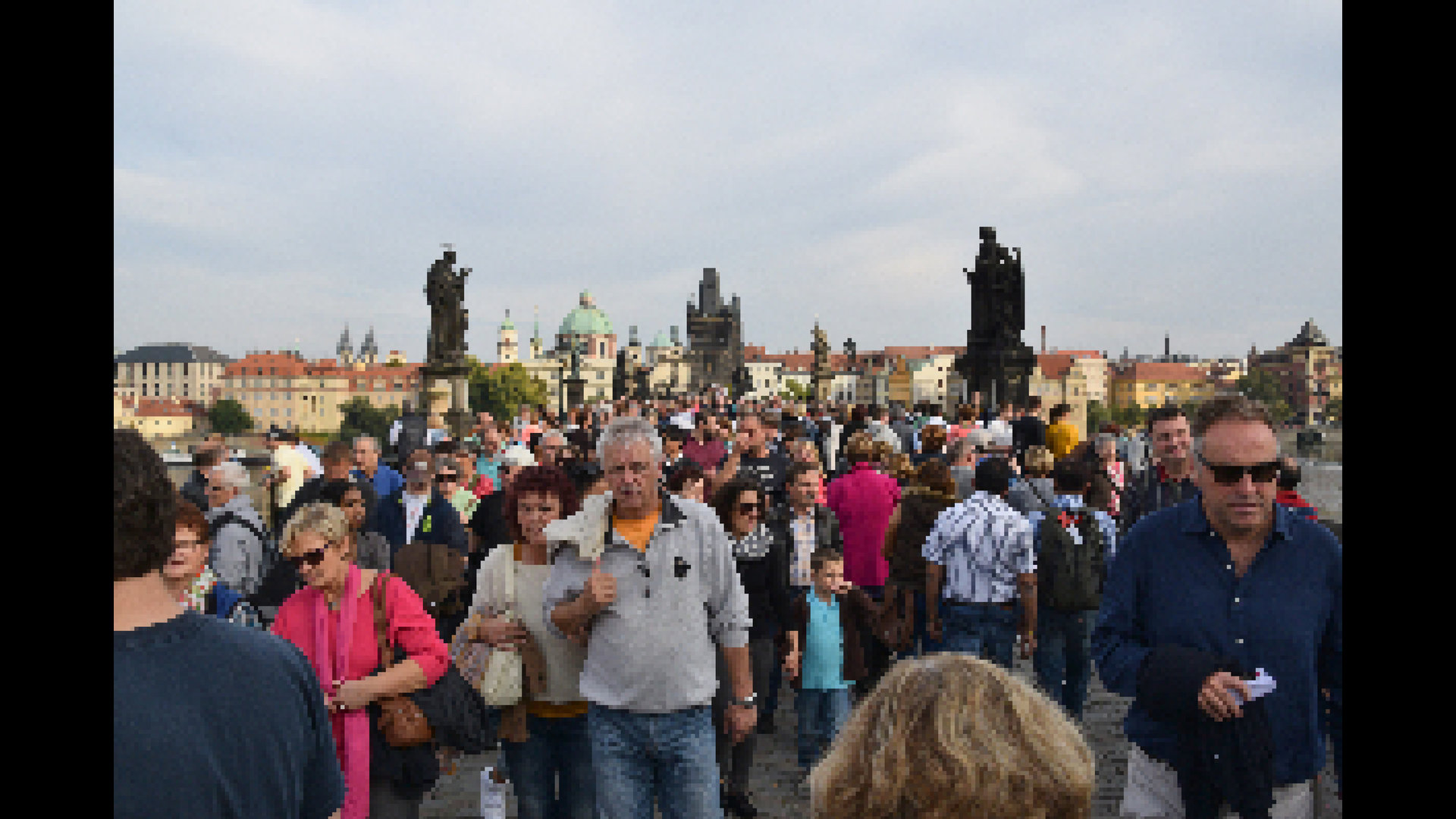
After a few hours Googling and trying a couple of different editors I found XnConvert, which has versions for Windows, Mac & Linux. It’s totally free for personal use, has an intuitive user interface – and it does the job perfectly! Here’s the final version, in 16:9, 1920×1080 format and 875kb in size, ready for uploading into the Kodak frame:
XnConvert has loads of other features, but for this job I’m only interested in resizing the image and canvas. After running the program click the Add Action button and select the Transform – Resize and Transform – Canvas resize options in turn:
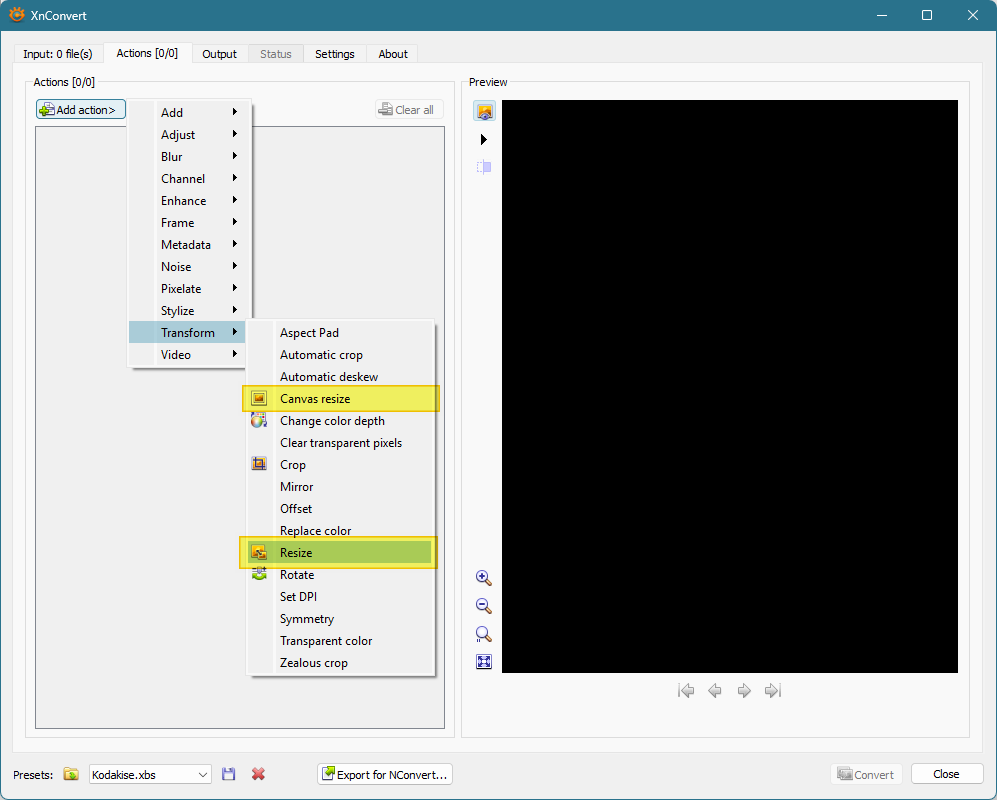
It’s important to select the Resize option first so that it executes first. Here’s a screenshot of the settings used to do the transformation:

You could also change the fill-in border colour in the Canvas resize panel if you wanted to.
I’ve set up 2 folders on my system; one for the original images and one for XnConvert to save the output files to. So now all I need to do is select a bunch of photos from my photo management program (ACDSee) and dump copies into the source folder, run XnConvert, select the source folder and hit the Convert button… within a very short time I have the output files ready for upload to the Kodak . Too easy! Thanks to the team at XnSoft 👍.